Raster to Vector Conversion Using Inkscape
Introduction
As part of my exploration in 2D graphics, I ventured into converting raster images into scalable vector artwork using Inkscape, a powerful and free vector graphics editor. This process allowed me to transform pixel-based images (like PNG or JPEG) into clean, editable, and resolution-independent vector graphics (SVG), perfect for design scalability and printing.
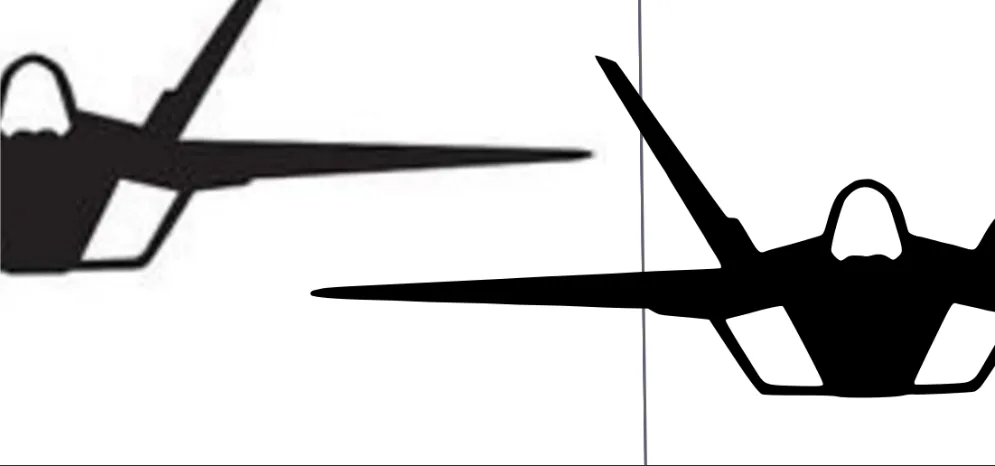
Tools Used:
- Software: Inkscape
- Feature: Trace Bitmap (Vectorization tool)
Step 1: Installing Inkscape on Ubuntu
To install Inkscape on my Linux system, I used the following command in the terminal:
- sudo apt update
- sudo apt install inkscape

This installed the latest version available in Ubuntu’s package repository. Once the installation was complete, I launched Inkscape by simply typing:
- inkscape

Step 2: Importing a Raster Image
Inside Inkscape, I started a new document. Then, I went to File → Import and selected a .PNG image from my local system. I chose “Embed” in the import dialog box to make the image part of the SVG file.


Step 3: Selecting the Image
After importing, I clicked on the image using the Select Tool (S). The selection handles appeared, indicating the image was ready for conversion.
Step 4: Accessing the Trace Bitmap Tool
- I accessed the Trace Bitmap tool by navigating to:
- Or, I used the shortcut Shift + Alt + B to open the tracing panel.
Path → Trace Bitmap

Step 5: Configuring the Trace Settings
I used different options based on the image type:
- For black & white images, I selected:
- Single Scan → Brightness Cutoff
- Adjusted threshold to suit the contrast
- For colored images, I selected:
- Multiple Scans → Colors
- Number of scans: 6 (for moderate detail)
- Checked Smooth, Stack Scans, and Remove Background

After adjusting the settings, I clicked Update to preview the trace and then OK to apply it.
Step 6: Separating the Vector Output
The vector version appeared directly on top of the original. I dragged it aside and deleted the original raster image, leaving a clean, scalable vector graphic.


Step 7: Exporting the Final Vector
To save the project, I used:
- File → Save As → Plain SVG


I also exported in formats like PDF and EPS for broader compatibility in design workflows and printing.
Key Takeaways:
- Converting raster to vector enhances scalability and flexibility in design.
- Inkscape is a powerful open-source alternative to commercial vector editors.
- Running on Linux makes it lightweight and efficient for daily creative tasks.